

TSCR Browser Link
TSCR Browser Link
Your browser. Your secrets. One secure connection.
Passwords, payment cards, one-time codes and Passkeys — accessed from the browser, managed by your local TSCR application.
One extension, connected to Secret Vault, Authenticator and Secret Generator. Less switching, less copying, more control.
Explore Browser Link
1. Why Browser Link?All the protection of TSCR — right where you browse.
Keep your secrets in TSCR. Use them in your browser. Browser Link is the companion that brings existing TSCR tools into the moments when you actually need them: logging in, verifying an identity, checking out or creating a new password.
Stop retyping
Choose a matching account and fill a login, code or supported card form without repeatedly copying values between apps.
Everything works together
Secret Vault stores your saved details; Authenticator handles one-time codes and Passkeys; Secret Generator creates new credentials.
Stay in control
Approve the browser connection, choose the intended account and confirm sensitive actions in TSCR when required.
Powerful security behind the scenes. Simple actions in your browser.
Back to contents ↑2. How Browser Link worksA connected workflow, not a separate password store.
Passkey request
Fill · Save · Approve
Authenticator
Secret Generator
The extension is a browser-facing companion. TSCR runs locally and remains responsible for protected credential storage and approval workflows.

One compact browser popup
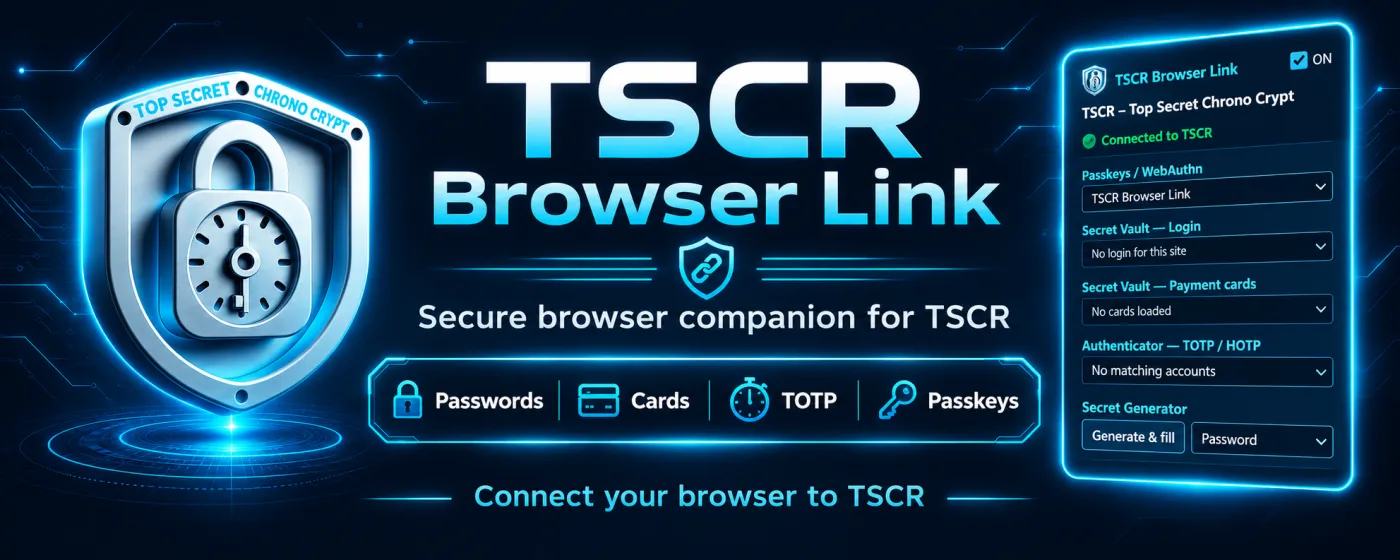
Open the extension while browsing and you can see its connection state and relevant controls:
- Passkeys / WebAuthn – choose the supported TSCR route.
- Secret Vault — Login – select a matching account and fill credentials.
- Secret Vault — Payment cards – use a compatible saved card.
- Authenticator — TOTP/HOTP – select a relevant code.
- Secret Generator – generate and fill a new value.
3. One extension. Six practical capabilities.
Login autofill
Match saved website credentials, choose an account and fill the supported login fields — including many multi-step and dynamic forms.
Save / Update
Save a new login or update an existing one in TSCR when you change credentials. TSCR confirmation protects the change.
Payment cards
Select a saved card for compatible HTTPS checkout fields. Form compatibility varies by website.
TOTP / HOTP 2FA
Get matching one-time authentication codes from TSCR Authenticator and fill them when supported.
Passkeys / WebAuthn
Create or use supported Passkeys through the TSCR DIRECT browser workflow, with account selection and approval when needed.
Generate & fill
Create a password in TSCR and insert it into the appropriate website field, then save it separately if you want to keep it.
4. Install & connectThree steps to get started.
Install the supported TSCR desktop build and open the application. Browser Link uses the local TSCR runtime.
Install the extension from the official browser store when available, or use the browser-specific package on the TSCR download / public Releases page.
Open Browser Link, choose Connect, then approve the browser profile's pairing request in TSCR. The popup will show the connection state.
Installation alternatives
Chrome & Edge
Preferred: install the published extension through your browser's official add-on store when listed. For a ZIP build, unpack the correct browser folder, enable Developer mode on the extensions page and choose Load unpacked.
Firefox
Use the official Firefox Add-ons listing when available. Firefox development packages can be loaded through about:debugging as temporary add-ons, which do not persist after restarting Firefox.
Only install Browser Link packages from official TSCR distribution channels. Browser-store listing and build availability may vary during publication.
Back to contents ↑5. Everyday workflowsChoose. Fill. Save. Approve. No unnecessary complexity.
A. Sign in with a saved password
Go to a login page for which you already have a saved Secret Vault login record.
Click the login field or open Browser Link and select the matching account.
Choose Fill login. Check the account and complete the website sign-in as usual.
Site-matched actions, when you need them
The extension can surface matching login and TOTP accounts for the current site. The TSCR Secret Vault mini-popup provides Fill login, Update in TSCR and password-generation controls.
Browser Link supports many common form patterns, including certain multi-step forms, password-only pages, dynamic inputs and compatible embedded fields. No extension can guarantee autofill on every site.

B. Save or update a website login
Save to TSCR
After creating an account or entering new login details, choose the Save action. Review and approve the save request in TSCR so the credentials become a protected Secret Vault record.
Update in TSCR
When a password changes, choose the saved account and use Update. Confirm the change in TSCR. For a password-only form, select a record or supply a username as needed.

Browser convenience, vault-level management
Secret Vault keeps the website URL, account name and protected password together. Browser Link uses the corresponding saved records to offer relevant choices at the website.
New logins and password changes return to TSCR for controlled storage — the extension is a companion, not a second independent vault.
C. Use a one-time authentication code
Two-factor authentication without the app-switching routine
When a website asks for a TOTP/HOTP code, open Browser Link, choose the matching Authenticator account and select Fill OTP where supported.
TSCR Authenticator remains the place where you add, import and manage the associated 2FA records.

D. Register or sign in with a Passkey
Create a Passkey
Start Passkey registration on a compatible site. Choose the TSCR Browser Link route when presented, review the website/account request in TSCR and approve the operation when required.
Use an existing Passkey
Start the website Passkey sign-in. Select TSCR Browser Link (or Use TSCR if shown in a supported Chromium flow). Choose the matching account and approve as required.

TSCR DIRECT is the recommended same-computer Browser Link route. Optional Windows NATIVE and cross-device HYBRID methods are separate Authenticator workflows and are not automatically provided by the browser extension.
E. Use cards or generate a new password
Payment-card autofill
At a supported HTTPS checkout, select a saved Secret Vault payment card and use Fill card. Verify the form and payment details before submitting. Some sites or embedded fields may not support extension-based autofill.
Generate & fill
For a new password field, open Secret Generator in Browser Link, choose the intended output and click Generate & fill. If the password should be stored for later use, follow with Save / Update.
6. Real-world use casesEveryday problems, practical outcomes.
Many websites, one place for credentials
A busy professional switches between banking, business and personal websites. Browser Link shows the matching Secret Vault accounts, so the right login is easier to find and fill.
Password change without losing track
A website asks for a new password. Generate & fill it, then approve Save/Update in TSCR — keeping the new credential linked to the website.
2FA on a familiar website
The site asks for a time-based code after login. Choose the matching TOTP account from Browser Link rather than manually finding and copying the code.
Passwordless sign-in
A Passkey-ready site requests authentication. Use the TSCR DIRECT path, select the appropriate account and approve the expected operation.
Payment details when shopping
At supported checkouts, select the intended payment-card record without repeatedly typing card numbers. Always confirm amounts and recipient details.
Multiple browser profiles
Approve each browser profile separately and revoke access independently when a profile should no longer connect to the TSCR app.
7. Security, privacy & control
Connected to your desktop
Browser Link talks to the locally running TSCR application. The extension is not designed as an independent cloud-based secrets repository.
Pairing by browser profile
Initial browser access is approved in TSCR. Pairings can be disconnected or revoked rather than leaving every browser profile permanently trusted.
Actions under your control
Choose relevant credentials and review sensitive operations. Some browser actions require explicit confirmation in the TSCR application.
Security depends on the safety of the device and browser, the websites involved, correct account selection and the use of trustworthy extensions. Never approve a connection or authentication request you do not recognize. Browser compatibility depends on site implementation and browser settings.
Back to contents ↑8. Questions & answers
Does Browser Link work without the TSCR desktop application?
Do I need to approve the connection every time?
Does Generate & fill save the password automatically?
Does it work on every login page or checkout?
Are Passkeys the same as TOTP codes?
Do Windows NATIVE and Android HYBRID require this extension?
What if I cannot find an extension in the browser store?
Your browser. Your secrets. Your control.
Connect once. Choose what you need. TSCR handles the complexity.
TSCR – Top Secret Chrono Crypt · Browser Link information page. Interface images illustrate the referenced desktop/browser builds; available options may vary by release, browser and website.